Logo Filter in Cambria FTC
Feature Overview
Cambria FTC provides a Logo Filter that allows users to overlay images or video files as logos on their source video. This guide explains the two ways to access the Logo Filter UI and describes each function within the UI in detail.
Accessing the Logo Filter UI
First Way
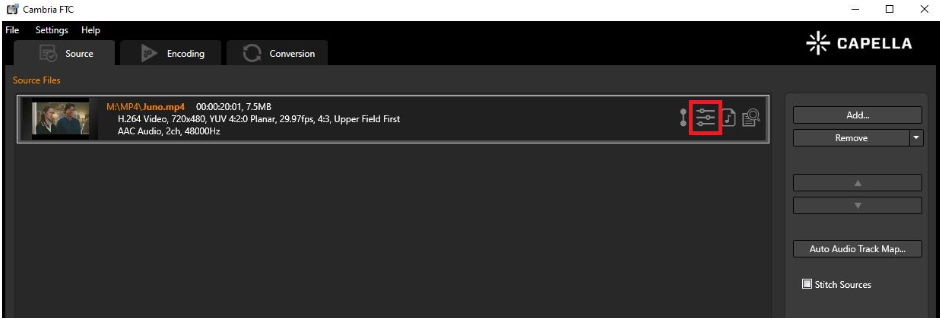
- Upload a video file to FTC..
- Click on the Filter icon.
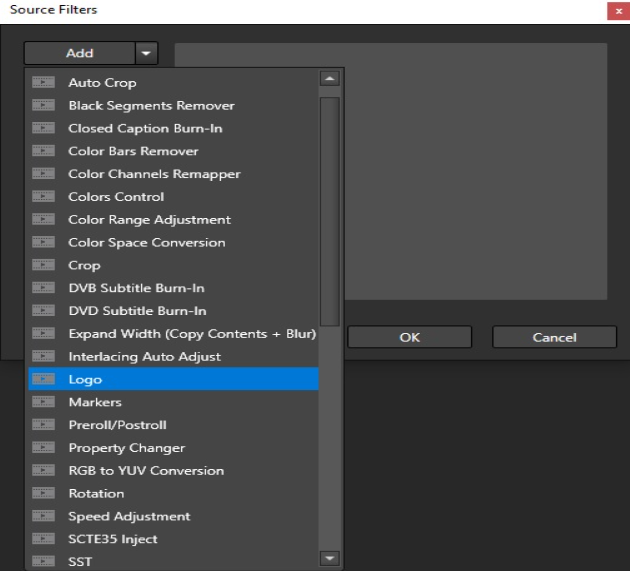
- Click on the arrow next to ADD and select Logo.
Second Way
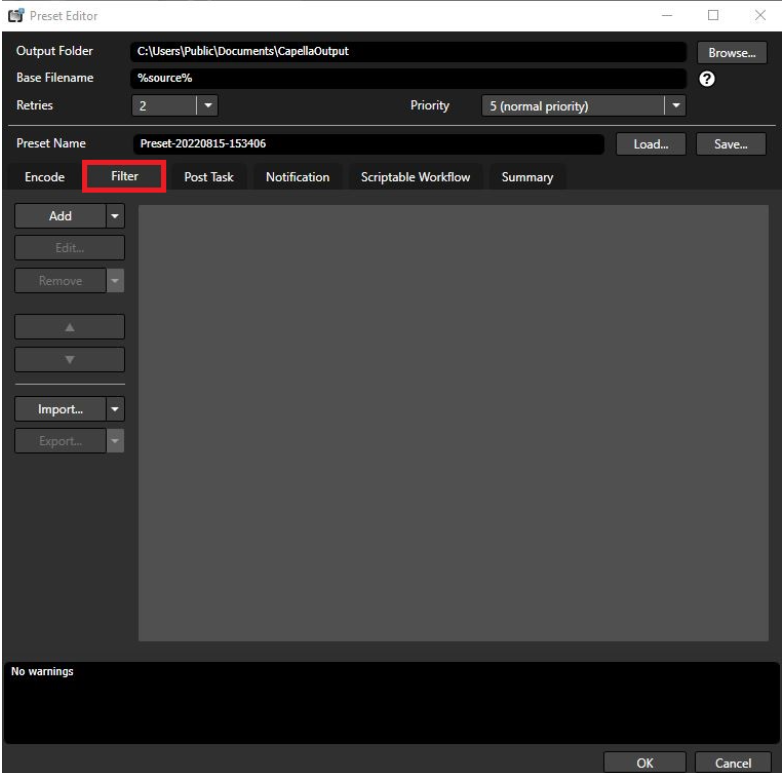
- Upload a video file to FTC.
- Click on the Encoding tab.
- Add a preset and click on the Filter tab.
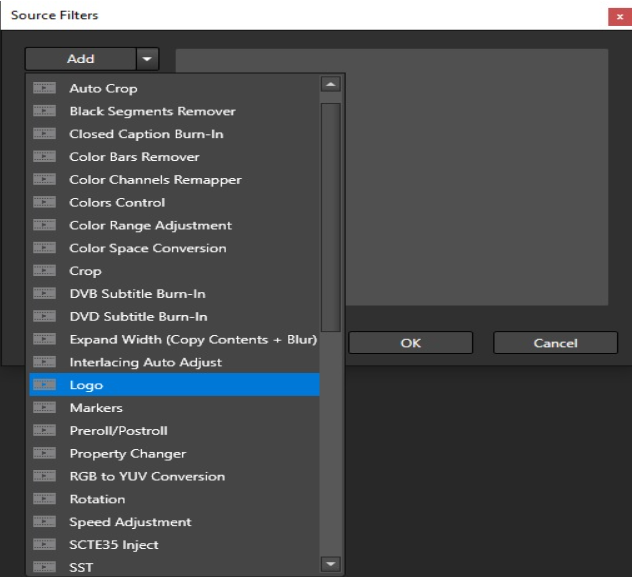
- Click on the arrow next to ADD and select Logo.
Logo Filter UI Breakdown
Below is a description of the available controls and functions in the Logo Filter user interface:
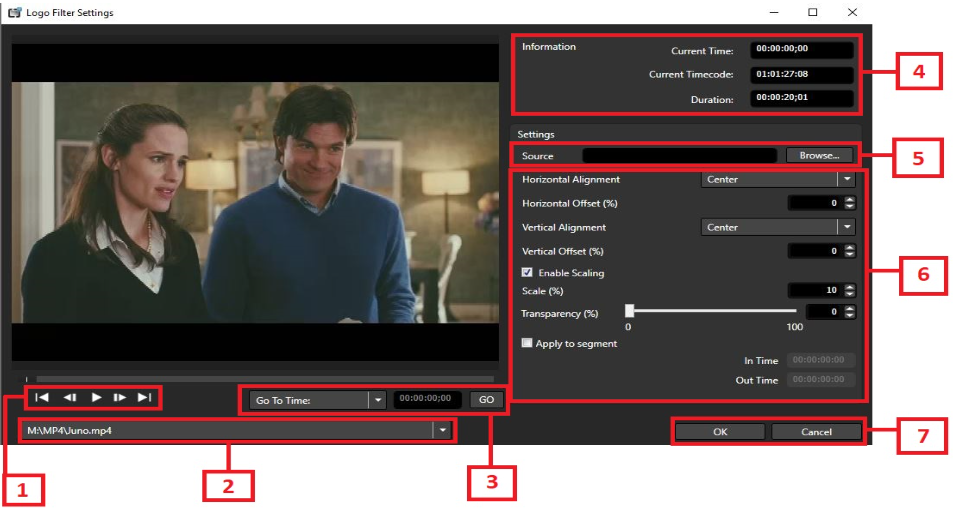
- These buttons control the scrolling of the source. You may scrub through the source or use the buttons.
From left to right, they are:
- Go to Beginning
- Go to Previous Frame
- Pause / Play
- Go to Next Frame
- Go to End
Source Selection
If you have multiple sources, you can use this dropdown to select which source to apply the filter to.
Jump to Time/Timecode
Instead of using playback buttons, you can skip directly to a specific time or timecode.
Timecode Display
This box shows:
- Current time in the video
- Current timecode
- Total duration of the video
Load Logo File
Click Browse to add the source of your logo. Supported image formats include:
.bmp,.jpg,.jpeg,.png,.tif,.tiff,.tga
You may also add a .mov file as a logo.
To do this, select .mov in the dropdown menu when browsing.
Logo Properties
This panel allows you to adjust:
- Size
- Transparency
- Offset
You may also choose to apply the logo filter to a specific segment of the source.
Apply the Filter
Click OK to apply the filter and save your settings.