Subtitle Burn-In Workflow with Cambria Watch Folder
Supported Version
FTC 4.x.x and above
Introduction
This document explains how to set up a Cambria Watch Folder for subtitle burn-in using the Subtitle Burn-In Filter. The configuration supports multiple subtitle tracks in formats such as .txt (Visititle format) and is powered by a scriptable workflow for dynamic mapping.
NOTE: User will need to know the number of subtitles to use as they set up the Watch Folder.
Step-by-Step Instructions
Launch Cambria Manager
- Launch Cambria Manager
- Go to the Watch Folder tab
- Click Add a Watch Folder
Watch Folder Configuration
In the Watch Folder configuration window, set the following:
- Folder to Watch: folder where you drop your source files to be encoded
- Subfolders to watch: depends on whether your folder has subfolders
- Priority
- Name and Description
Source Acceptance Setup
Go to the Source Acceptance Tab and configure:
- Accept if source file is constant for: (set time by using dropdown or manual entry)
- Ensure Source is a group of files is enabled
Example file group:
source1234.mov
source1234_eng.txt
source1234_spa.txt
source1234_ger.txt
02_screenshot.png
Set file pattern to:
%match%.*, %match%_eng.txt %match%_spa.txt and %match%_ger.txt
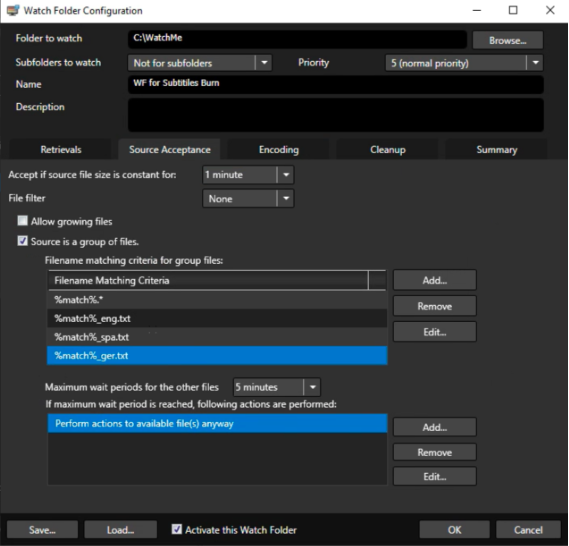
Encoding Configuration
Go to the Encoding Tab to add your encoding actions:
- Click Add Simple Action…
- For the Trigger select: %match%.* as shown below:
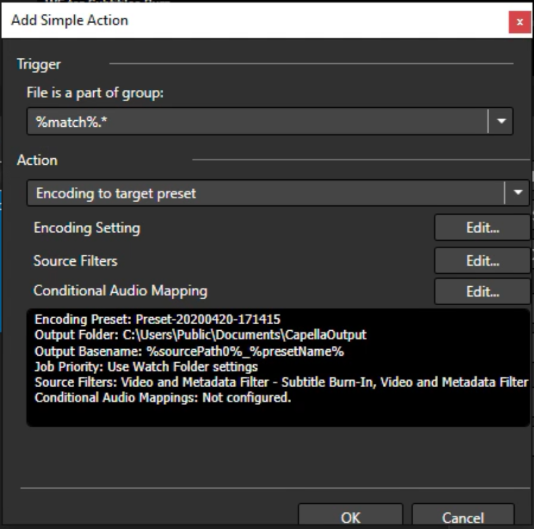
- Set Action to:
Encode to Target Preset - Click Edit… to configure:
- Encoding Settings
- Source Filter Settings
- Conditional Audio Mapping Settings
Subtitle Burn-In Filter Setup
In Source Filters, click Edit…, then:
- Click Add
- In the Select Filter dropdown, choose Subtitle Burn-In and click OK
- Configure the following:
- Subtitle Source Type:
Visititle Single Timecode format - Browse and load the first subtitle file (e.g.,
source1234_eng.txt)
- Subtitle Source Type:
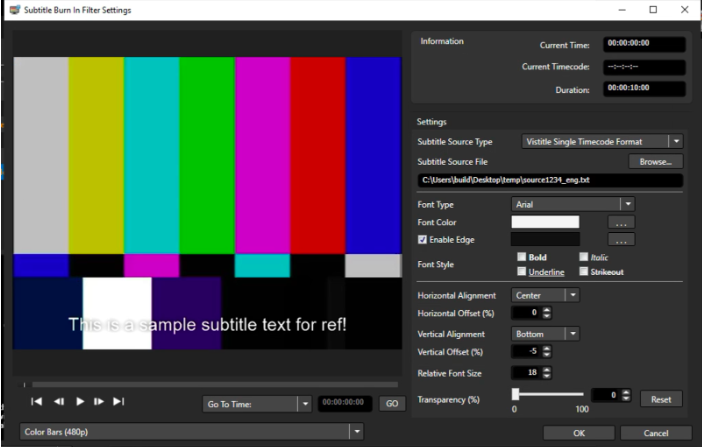
Repeat this process for each subtitle file.
In the given example, you should add 3 Subtitle Burn-In Filters.
Click OK to add your subtitle burn-in filter to your watch folder configuration.
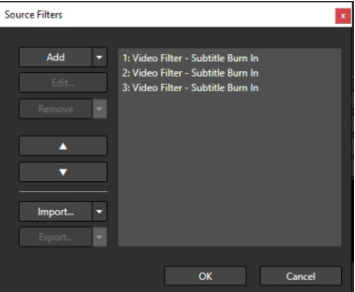
NOTE: Ensure that each subtitle filter is configured for the correct Subtitle Source Type.
Scriptable Workflow Integration
Click Edit… on your encoding settings again to access the Scriptable Workflow Tab:
- Enable Scriptable Workflow
- Leave default settings
- Click Add Script and load the following script:
https://www.dropbox.com/s/ouzwwgj0a1l764g/UseMultiSubBurnInSourcesFromGroupOfFiles.pl?dl=0
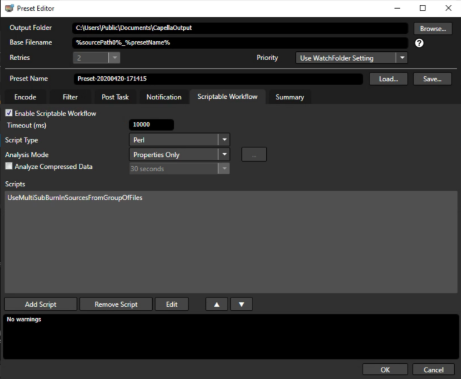
Click OK to save the preset with the script.
Activate and Run Watch Folder
- Click OK to go back to Watch Folder configuration window and Enable Activate this Watch-Folder.
- Drop your source file along with your subtitle files into the Watch Folder you specified in step 3, the Encoding Job should start.
- Your output file should have 3 subtitles burned in, you can change their positions to see all three in the Subtitle Burn-In fitler settings.